In the first part of this series, we set up a basic virtual mail server with Postfix that received emails for our domain and forwarded it to a mailbox of our choice. To round off the basic set of features for our mail server, we will be setting up Simple Authentication and Security Layer (SASL) to work with Postfix, so that we can access our mail server with a mailbox client (like Gmail) and send out emails from our domain.
The former option is cheap, but can be clunky to use and ineffective with blocking spam. The latter option — being specialised services — are generally much more accessible and effective with spam, but cost more.
There’s actually also a third option, and that is:
Running your own mail server on a cloud server.
This means that you have to set up the server and maintain it, but it also means that you can have a cheap and effective mail server, instead of having to choose between one or the other.
In this series of articles, we are going to explore how we can set up a virtual mail server using a Mail Transfer Agent (MTA) called Postfix. This will be a fully-featured mail server, meaning that over the course of these articles, we will be building a mail server that can:
Send and receive emails,
Filter incoming emails for spam, and;
Pass email policy checks, so that the emails it sends out are not flagged as spam.
Unity’s Device Simulator is a very nice extension in Unity that allows users to quickly and easily test out their games on a mobile platform. It extends the Game window by adding a dropdown that allows the user to switch between the Game view and a newly-added Simulator view.
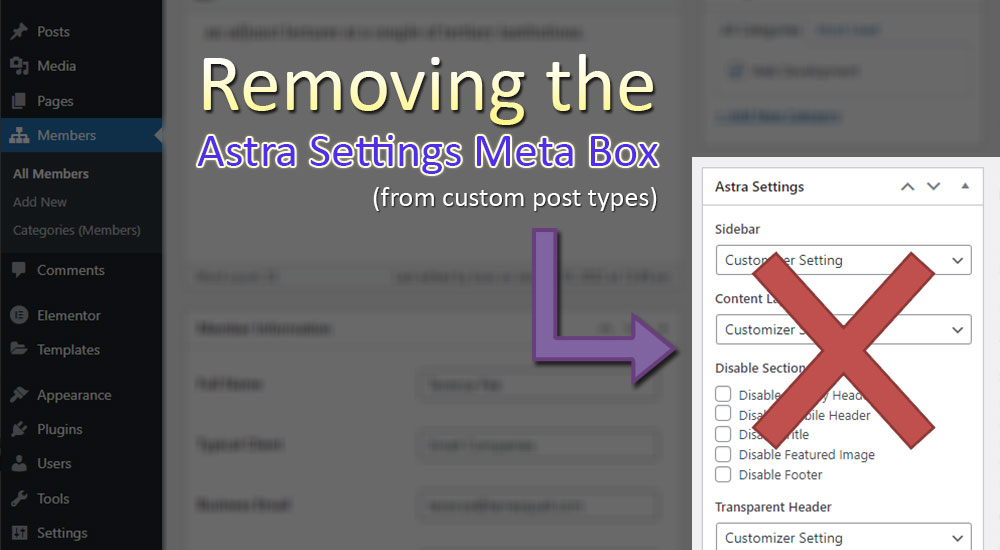
I’ve been developing a WordPress child theme based on Astra for a client recently. This child theme comes with a custom post type, and I ran into a bit of trouble trying to remove the Astra Settings Meta Box (which Astra tags onto every single post type) from my custom post type.
Ever wanted to create a game like Harvest Moon in Unity? Check out Part 8 of our guide here, where we go through how to make crops that can be harvested multiple times, along with a system that allows for them to die. You can also find Part 7 of our guide here, where we went through how to grow and harvest crops.
A link to a package containing the project files up to Part 8 of this tutorial series can also be found at the end of this article, exclusive to Patreon supporters only.
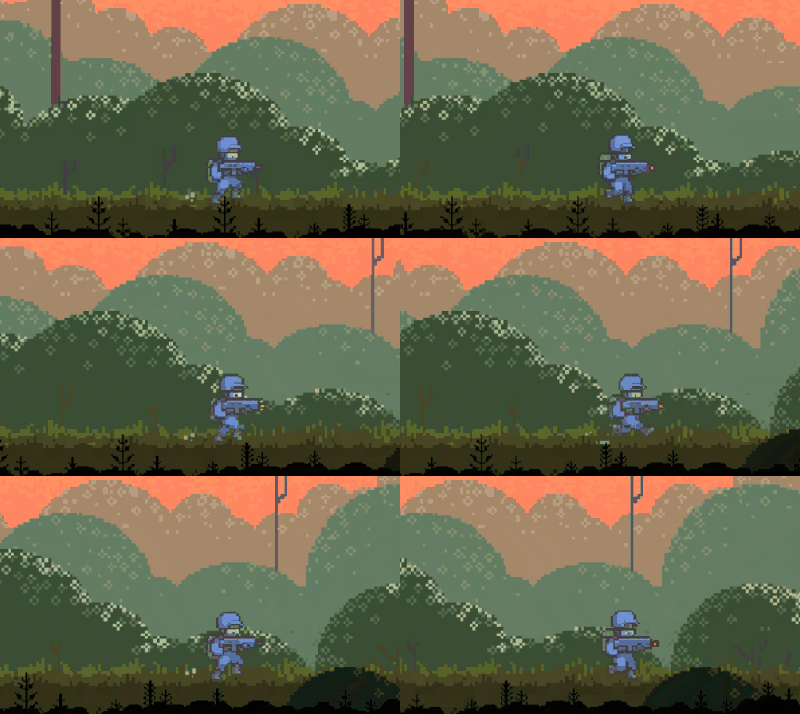
If you’ve got a player character in your game that derives its movement from a Rigidbody or Rigidbody2D component in Unity, and you write a script to make your camera follow it, you will likely see jittering in your camera movement.
Here’s an example:
It’s not very noticeable if you don’t move at high speeds.
Essentially, the CSV file format is meant to represent tabular data. The above CSV file represents the following table:
Username
Email
Address
Contact
johndoe
john@example.com
71 Pickering Street, Singapore, Singapore
+65-91234567
janedoe
jane@website.com
24 Raffles Lane, Singapore, Singapore
+65-81234567
marysmith
mary@smith.com
83 Riveting Road, Singapore, Singapore
+65-97654321
bobsmith
bob@smith.com
84 Riveting Road, Singapore, Singapore
+65-87654321
Due to their tabular nature, data in a CSV file can very easily be imported into and stored in an SQL table. The commands to do that, however, are not very well-documented online.
If a CSV file does not open as a text file on your computer, that’s because your computer is opening the file with a spreadsheet program such as Microsoft Excel. In such a case, to see the file as text, you will want to open these files on a text editing software such as Notepad.
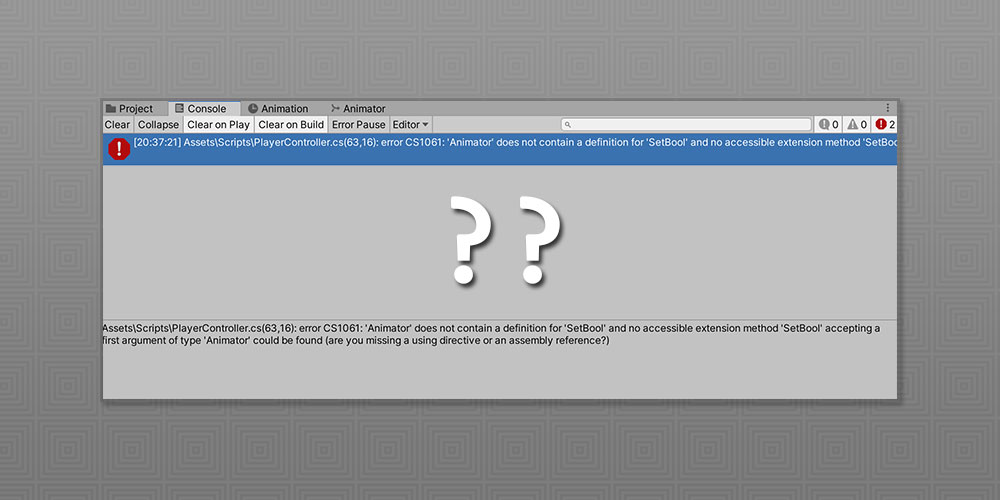
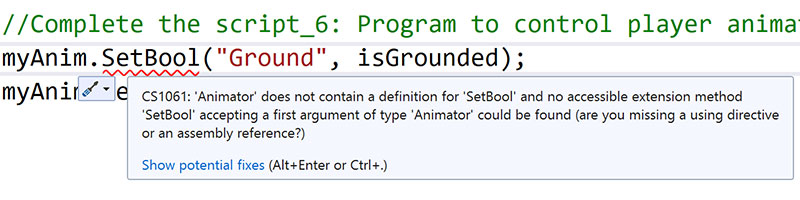
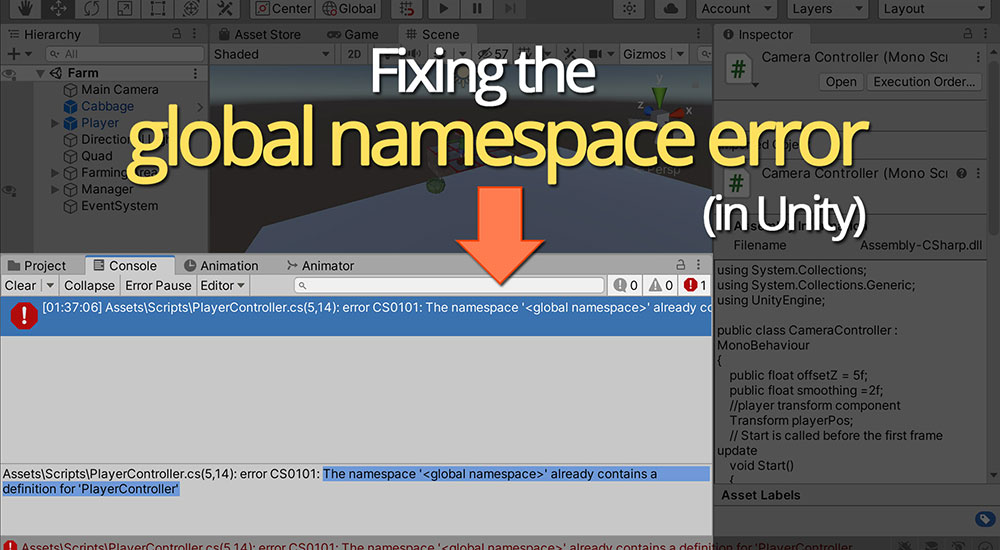
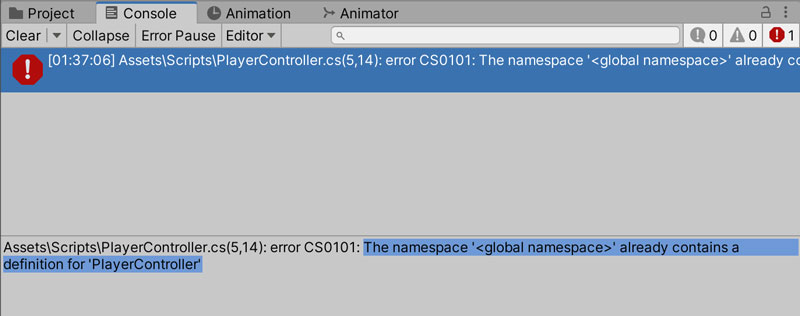
Here’s a common error that people usually run into when doing Unity scripting, and it’s one that even reasonably-skilled programmers can take awhile to fix.
Many keyboards have been destroyed in rage because of this error.