Originally developed for Terresquall’s Metroidvania tutorial series, the Bench Universal Save System provides a very easy, plug-and-play way to implement a persistent save system into your project.
In this article, we will use this open-source Angry Birds project on GitHub by JdomiDev to show you an example of how easily the save system can be implemented into your project.
Table of contents:
1. Introduction
a. How the Bench Universal Save System works
The save system works by storing and retrieving each levels data under a unique Save ID. When a player completes a level, the game saves information such as the number of stars earned and the player’s highest score. Each level has its own Save ID, which allows the system to find and update the correct data without affecting other levels.
When the game is opened again, the saved data is loaded and used to restore progress, display previous scores, and determine which levels or episodes should be unlocked, keeping the player’s progress consistent across different play sessions.
b. How the old save system works
As mentioned above, we will be using a public repository of Angry Birds by JDomiDev to demonstrate how to implement Bench into your project.
In this project, the only thing that needs to be saved is the number of stars a player has received for each level. To do so, the project uses Unity’s PlayerPrefs, saving each Scene’s build index as the key together with an int value that records the stars received for each level.
This is done in the Saves component:
Saves.cs
using UnityEngine;

public class Saves : MonoBehaviour
{
    [SerializeField] private int levelIndex;
    [SerializeField] private GameObject zeroStar;
    [SerializeField] private GameObject oneStar;
    [SerializeField] private GameObject twoStars;
    [SerializeField] private GameObject threeStars;

    private void Awake()
    {
        if(PlayerPrefs.HasKey(levelIndex.ToString()))
        {
            if(PlayerPrefs.GetInt(levelIndex.ToString()) == 1)
            {
                oneStar.SetActive(true);
            }
            else if(PlayerPrefs.GetInt(levelIndex.ToString()) == 2)
            {
                twoStars.SetActive(true);
            }
            else if (PlayerPrefs.GetInt(levelIndex.ToString()) == 3)
            {
                threeStars.SetActive(true);
            }
            else
            {
                zeroStar.SetActive(true);
            }
        }
        else
        {
            zeroStar.SetActive(true);
        }
    }
}
The Saves component is attached to every level select button in the Level Select Scene, where it checks whether there is a record of how many stars the player has scored for that level, and then activates the corresponding number of stars below the level select button.
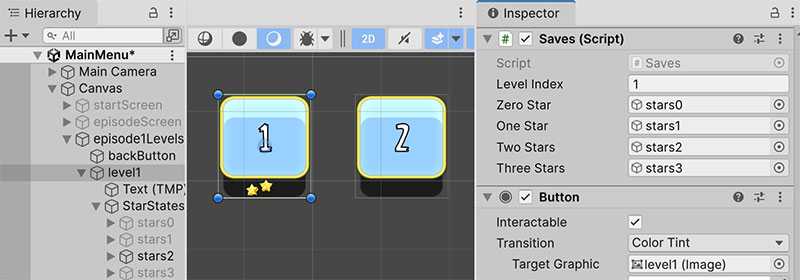
Saves component on the Level Select buttons.The method of saving the number of stars earned for each level is handled by calculating the player’s score as a percentage of the maximum possible score, then determines whether the player has earned 1, 2 or 3 stars.
The result, as highlighted in Saves above, is saved using PlayerPrefs, with the current Scene’s build index used as the key and the number of stars stored as the value. This method also checks the player’s previously saved star count so that a lower result does not overwrite a higher one.
This is done with the InGameMenu component inside calculateStars(), which is called by the winDelay() coroutine in a level when the player is determined to have won the game.
InGameMenu.cs
using System.Collections.Generic;
using UnityEngine;
using UnityEngine.SceneManagement;
using Assets.Scripts;
using TMPro;
using System.Collections;

public class InGameMenu : MonoBehaviour
{

    [SerializeField] private AudioSource audio;

    [SerializeField] private AudioClip[] sound;

    [SerializeField] private GameObject defaultState;
    [SerializeField] private GameObject openState;
    [SerializeField] private GameObject wonState;
    [SerializeField] private GameObject lostState;
    [SerializeField] private GameObject scoreState;
    [SerializeField] private GameObject highScore;
    [SerializeField] private GameObject[] stars;
    [SerializeField] private GameObject[] emptyStars;

    [SerializeField] private AudioClip[] lostSounds;
    [SerializeField] private AudioClip[] winSounds;
    [SerializeField] private AudioClip scoreCountLoop;


    [SerializeField] private TextMeshProUGUI scoreText;
    [SerializeField] private TextMeshProUGUI highscoreText;


    private List<GameObject> Birds;


    Score score;


    private bool onWinScreen = false;


    private void Start()
    {
        if(PlayerPrefs.HasKey(SceneManager.GetActiveScene().buildIndex + "h"))
        {
            highscoreText.text = PlayerPrefs.GetInt(SceneManager.GetActiveScene().buildIndex + "h").ToString();
        }
        score = GameObject.Find("number").GetComponent<Score>();
    }

    private void Awake()
    {
        Birds = new List<GameObject>(GameObject.FindGameObjectsWithTag("Bird"));
    }

    private void FixedUpdate()
    {
        if (GameManager.CurrentGameState == GameState.Won && onWinScreen == false && GameManager.BricksBirdsPigsStoppedMoving() && new List<GameObject>(GameObject.FindGameObjectsWithTag("Bird")).Count == GameManager.birdsNumber)
        {
            int rand = Random.Range(0, 2);
            if (!audio.isPlaying)
            {
                AudioPlayer.audio.PlayOneShot(winSounds[rand]);
            }
            GameObject.Find("ambient").GetComponent<AudioSource>().Stop();
            StartCoroutine(winDelay(rand));
        }
        else if(GameManager.CurrentGameState == GameState.Lost && onWinScreen == false && GameManager.BricksBirdsPigsStoppedMoving() && new List<GameObject>(GameObject.FindGameObjectsWithTag("Bird")).Count == GameManager.birdsNumber)
        {
            GameObject.Find("ambient").GetComponent<AudioSource>().Stop();
            StartCoroutine(lostDelay());
        }
    }

    private void calculateStars()
    {
        score.maxScoreUpdate((Mathf.RoundToInt(Birds.Count * 0.75f)) * 10000);
        score.scoreUpdate((new List<GameObject>(GameObject.FindGameObjectsWithTag("Bird")).Count) * 10000);

        if (((float)score.score / (float)score.maxScore) * 100f >= 80f) // 3 starts
        {

            StartCoroutine(starDelay(3));

            if (PlayerPrefs.GetInt(SceneManager.GetActiveScene().buildIndex.ToString()) < 3)
            {
                PlayerPrefs.SetInt(SceneManager.GetActiveScene().buildIndex.ToString(), 3);
            }

        }
        else if(((float)score.score / (float)score.maxScore) * 100f >= 50f) // 2 stars
        {
            StartCoroutine(starDelay(2));

            if (PlayerPrefs.GetInt(SceneManager.GetActiveScene().buildIndex.ToString()) < 2)
            {
                PlayerPrefs.SetInt(SceneManager.GetActiveScene().buildIndex.ToString(), 2);
            }
        }
        else // 1 star
        {
            StartCoroutine(starDelay(1));

            if (PlayerPrefs.GetInt(SceneManager.GetActiveScene().buildIndex.ToString()) < 1)
            {
                PlayerPrefs.SetInt(SceneManager.GetActiveScene().buildIndex.ToString(), 1);
            }
        }
        PlayerPrefs.Save();
        StartCoroutine(CountUpToTarget(scoreText, score.score, PlayerPrefs.GetInt(SceneManager.GetActiveScene().buildIndex.ToString())));

    }

    private void highScoreShow()
    {
        if (PlayerPrefs.HasKey(SceneManager.GetActiveScene().buildIndex.ToString() + "h"))
        {
            if (PlayerPrefs.GetInt("1h") < score.score)
            {
                PlayerPrefs.SetInt(SceneManager.GetActiveScene().buildIndex.ToString() + "h", score.score);
                highScore.SetActive(true);
                menuSound(3);
            }
        }
        else
        {
            PlayerPrefs.SetInt(SceneManager.GetActiveScene().buildIndex.ToString() + "h", score.score);
            highScore.SetActive(true);
            menuSound(3);
        }
        PlayerPrefs.Save();
    }
    private void changeState()
    {
        menuSound(1);
        if (defaultState.active == true)
        {
            defaultState.SetActive(false);
            scoreState.SetActive(false);
            openState.SetActive(true);
        }
        else if(openState.active == true)
        {
            openState.SetActive(false);
            scoreState.SetActive(true);
            defaultState.SetActive(true);
        }
    }
    private void menuSound(int number)
    {
        audio.PlayOneShot(sound[number]);
    }

    private void reloadLevel()
    {
        menuSound(1);
        Application.LoadLevel(Application.loadedLevel);
    }
    private void loadMenu()
    {
        menuSound(1);
        SceneManager.LoadScene(0);
    }

    private void nextLevel()
    {
        menuSound(1);
        SceneManager.LoadScene(SceneManager.GetActiveScene().buildIndex + 1);
    }


    // enums


    private IEnumerator lostDelay()
    {
        yield return new WaitForSeconds(2f);

        if (GameManager.CurrentGameState == GameState.Lost && onWinScreen == false && GameManager.BricksBirdsPigsStoppedMoving() && new List<GameObject>(GameObject.FindGameObjectsWithTag("Bird")).Count == GameManager.birdsNumber)
        {
            AudioPlayer.audio.PlayOneShot(lostSounds[Random.Range(0, 2)]);


            onWinScreen = true;

            defaultState.SetActive(false);
            scoreState.SetActive(false);
            openState.SetActive(false);
            lostState.SetActive(true);
        }
    }
    private IEnumerator winDelay(int clipIndex)
    {
        yield return new WaitForSeconds(winSounds[clipIndex].length);
        if (GameManager.CurrentGameState == GameState.Won && onWinScreen == false && GameManager.BricksBirdsPigsStoppedMoving() && new List<GameObject>(GameObject.FindGameObjectsWithTag("Bird")).Count == GameManager.birdsNumber)
        {

            onWinScreen = true;

            defaultState.SetActive(false);
            openState.SetActive(false);
            scoreState.SetActive(false);
            wonState.SetActive(true);

            calculateStars();
        }
        else
        {
            StartCoroutine(lostDelay());
        }
    }


    private IEnumerator starDelay(int num)
    {
        int loopCount = 0;

        int starIndex = 0;

        yield return new WaitForSeconds(1f);
        while (num > loopCount)
        {
            stars[starIndex].SetActive(true);
            emptyStars[starIndex].SetActive(false);

            loopCount++;
            starIndex++;

            yield return new WaitForSeconds(1f);
        }
        highScoreShow();
    }
    IEnumerator CountUpToTarget(TextMeshProUGUI label, int targetVal, float duration, float delay = 0f, string prefix = "")
    {
        if (delay > 0)
        {
            yield return new WaitForSeconds(delay);
        }

        int current = 0;
        while (current < targetVal)
        {
            if (AudioPlayer.audio.clip != scoreCountLoop && !AudioPlayer.audio.isPlaying)
            {
                AudioPlayer.audio.PlayOneShot(scoreCountLoop);
            }

            current += (int)(targetVal / (duration / Time.deltaTime));
            current = Mathf.Clamp(current, 0, targetVal);
            label.text = prefix + current;
            yield return null;
        }
    }

}
It’s a pretty simple system, and in this tutorial, we are going to switch it over to using Bench to show how easy implementation can be.
2. Preparation & Setup
Before we begin, you’ll need to set up the project on your device.
a. Cloning the repository
Since the project is on GitHub, you have 2 options for getting the project onto your device:
- If you’re familiar with using GitHub (or if you want to do it the proper way), you can clone the project from the following URL: https://github.com/JdomiDev/AngryBirdsRemakeUnity
- Alternatively, you can download the project files directly from GitHub using this download link.
If you’re completely new to GitHub, but still want to try it out, I suggest downloading GitHub Desktop, and following the steps here to clone the project.
Once the project is cloned or downloaded (if you downloaded it, you will need to unzip it), you can follow the guide below to open the project in Unity.
b. Migrating to Unity 6000.3.12f1
This project originally started in Unity 2021.3.3f1, but since the Bench Universal Save System requires Unity 2022.3.62 or higher, we’re migrating this project up to Unity 6000.3.12f1 to use it.
If you haven’t downloaded Unity 6000.3.12f1 yet, visit the link here to directly download it, or visit the Unity Editor Download Archive and filter the versions tab to All versions and search for 6000.3.12f1.

After downloading Unity 6000.3.12f1 and adding the project into Unity Hub, click on the drop down where the Editor Version drop down and select 6000.3.12f1 to open with that version.
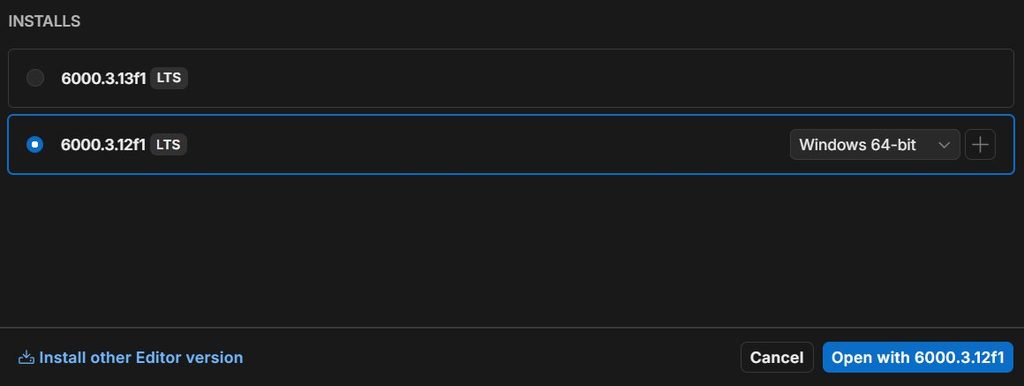
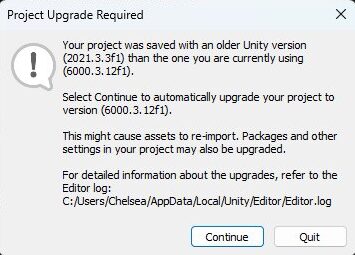
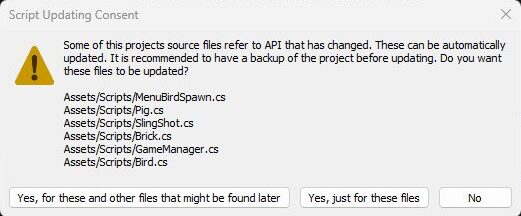
When jumping across that many versions, this means some deprecated APIs get auto-updated by Unity itself during the upgrade. Follow this guide to updating the project:
You will see this pop up prompt on your screen, simply press Continue.
When Unity shows this API Updater prompt, choose Yes, for these files and other files that might be found later. This lets Unity auto-fix deprecated scripts and automatically handle any similar ones it finds later in the upgrade, saving time from manually updating the scripts.
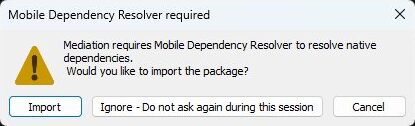
After upgrading, a Mobile Dependency Resolver prompt will appear. Choose Import to add the resolver files required by mobile related plugins in the project.
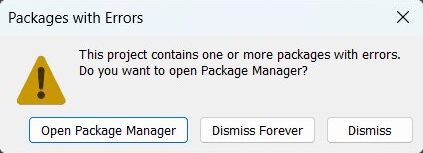
Once the project has been successfully updated and opened, you will see this error. Simply press on Open Package Manager and follow the steps.
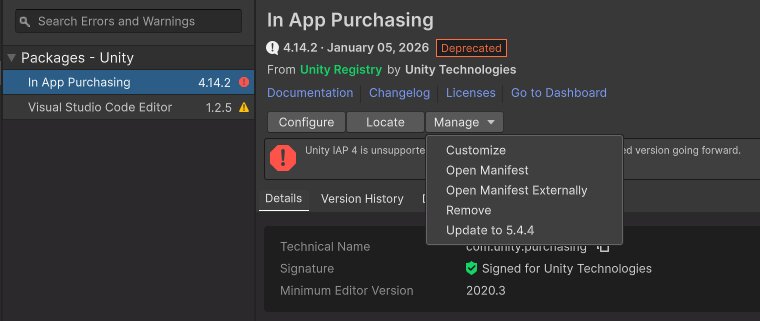
It will direct you to Unity’s In App Purchasing package. Since this project isn’t using any In App Purchasing services, you can simply press Manage, then Remove.
After all the steps are complete, the project is now ready to implement the Bench Universal Save System.
c. Importing the Bench Universal Save System
Once your project is open in Unity, we will add the Bench Universal Save System from the Unity Asset Store into the project.
View asset
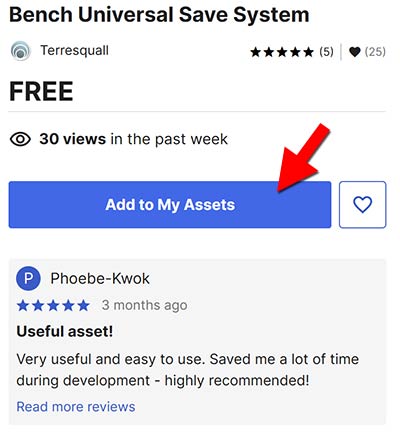
To import the asset, you will first need to head to its page on the asset store by clicking on the image above. Then, log-in to your Unity account and click on Add to My Assets.
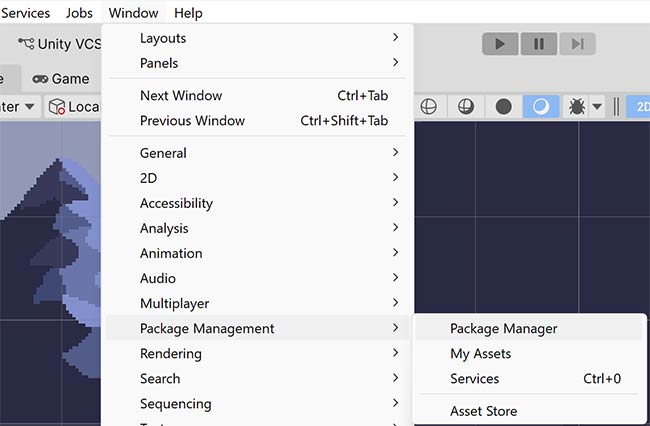
With that done, you can now click on Window at the top of the Unity Editor, then open the Package Manager window.
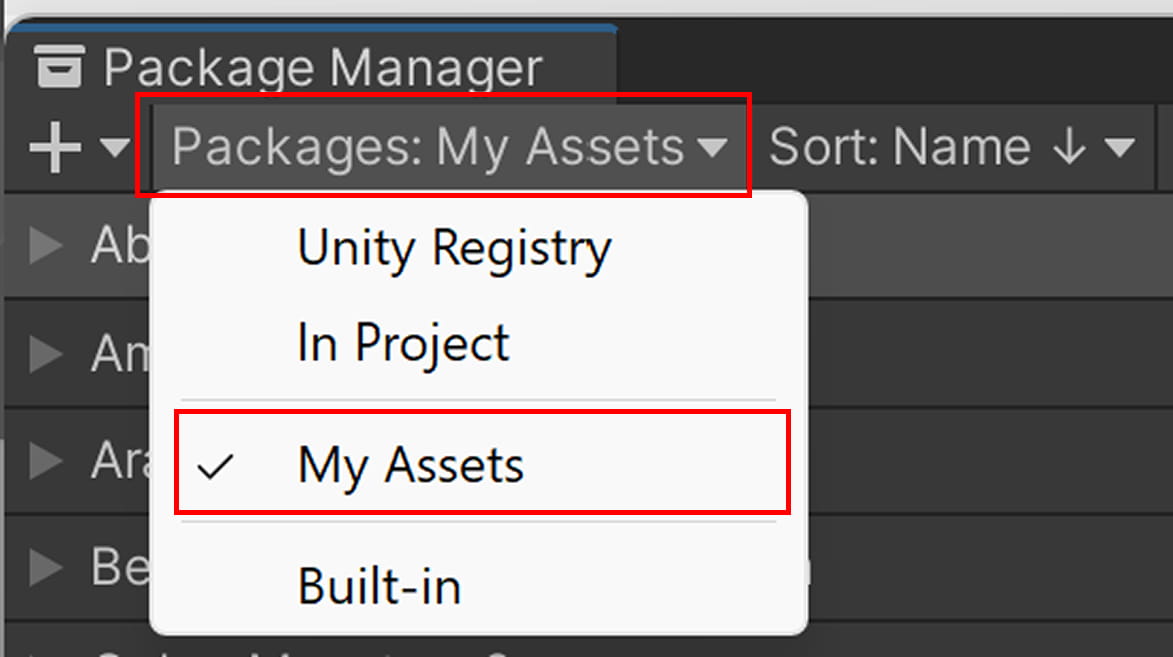
Select My Assets from the dropdown on the top right, and search for the Bench Universal Save System.
Once you find the asset, select it from the results and click Download. Once the download is complete, click Import to open the Import Unity Package window.
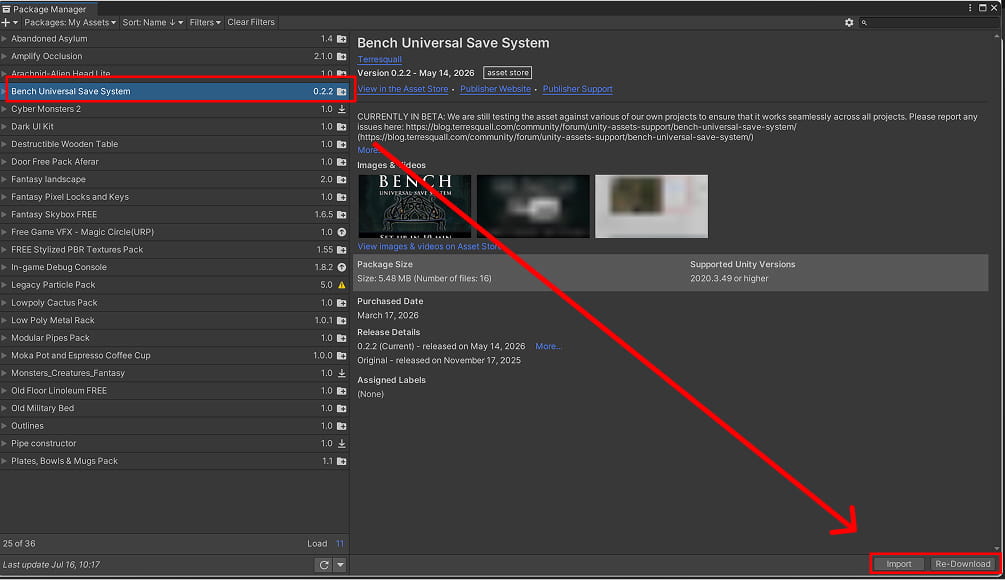
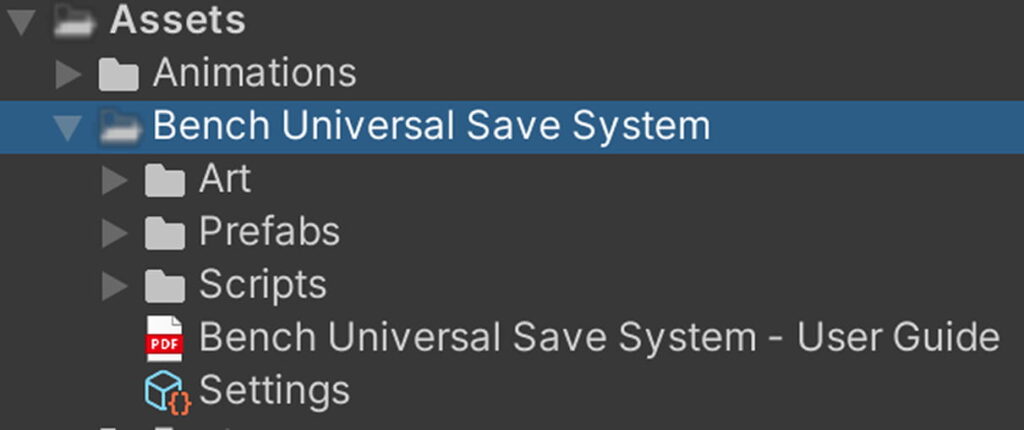
Import all the files into your project and allow Unity to compile the scripts. Then, check the Console window to make sure that the project does not contain any compilation errors before continuing.
d. Setting up a Second Episode
To properly demonstrate how the save system works across multiple episodes, we will add a second episode to the game. This gives us a clear way to show that level progress, stars and high scores are saved and carried over correctly between different parts of the game.
To make an additional episode on top of the existing one, duplicate the episode1 and episode1Levels GameObjects and rename them to episode2 and episode2Levels respectively. After duplicating them, move the new Episode 2 GameObject to a different position in the Scene so that they do not overlap or hide the original Episode 1 object.
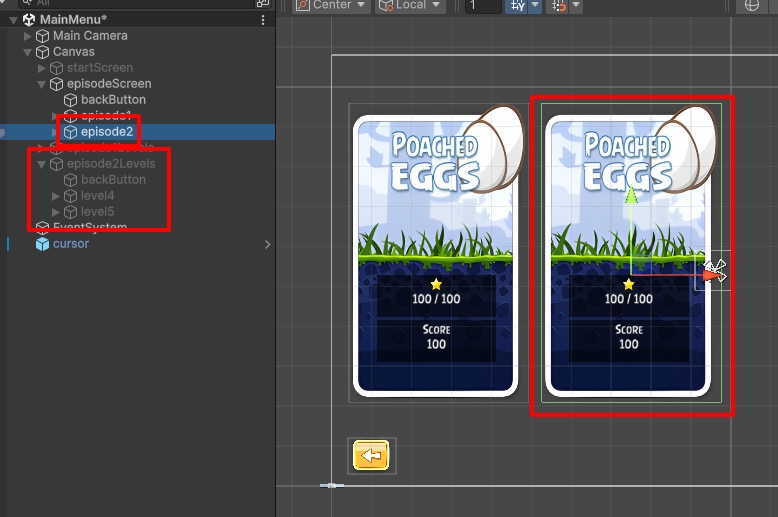
Remember to change the levelButton values of the new episode 2 levels accordingly in each level Button component,

levelButton values.To add levels for the new episode, duplicate the existing Level 1 and 2 in the project and rename them in sequence for the new episode.
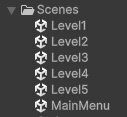
In order to be able to play the new levels, we need to add their Scenes to the Build Profile so Unity can include and load them during the game. Press File on the top left and click on Build Profile.
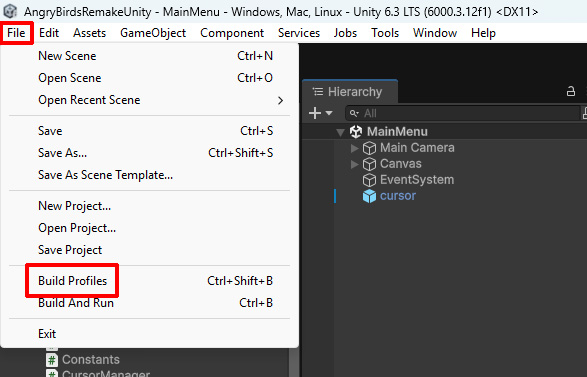
Click on Open Scene List to open the Scene List to start adding in the new scenes.
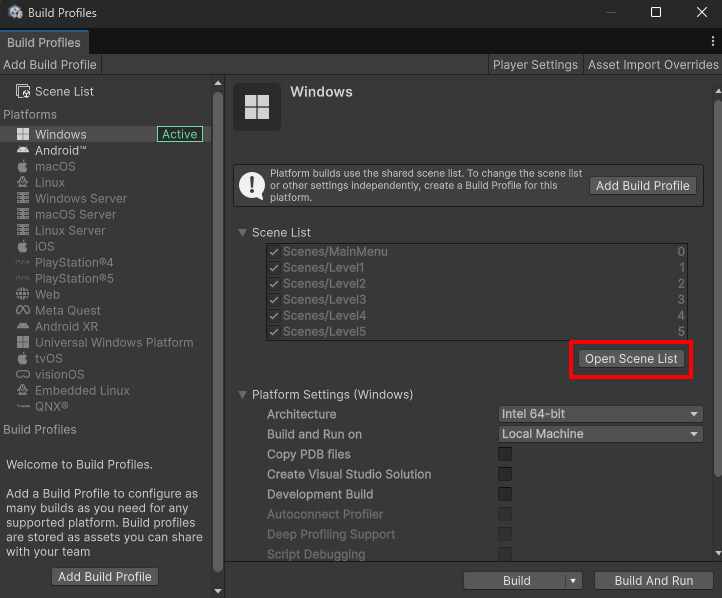
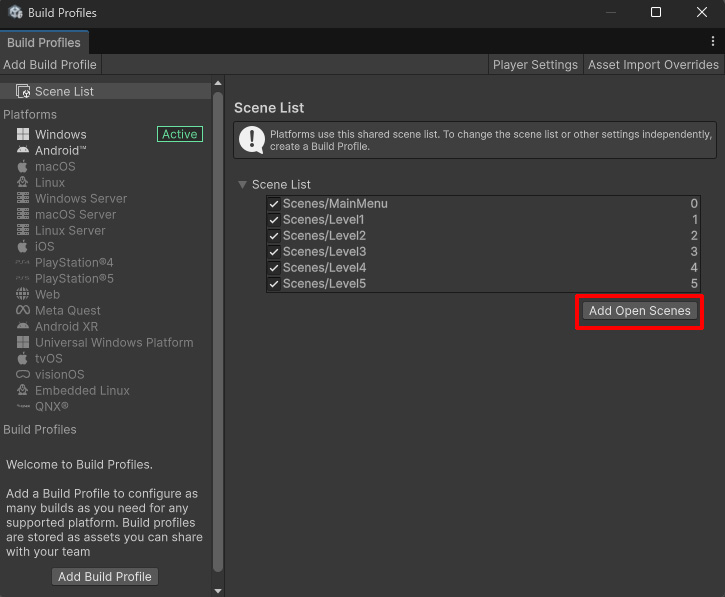
Before adding a Scene to the Build Profile, make sure that Scene is currently open in the editor. Open each new level Scene one at a time, then click Add Open Scenes to include it in the Build Profile.
Since we now have 2 episodes with their own levels, MainMenu.cs will have to be updated to support more than one episode. Previously, the Back button was hardcoded to episode1, which meant it only returned properly from the first episode menu.
The updated script uses currentEpisode to keep track of whichever episode the player opens. This allows EpisodeButton() and BackButton() to work with as many episodes added later on.
MainMenu.cs
using UnityEngine;
using UnityEngine.SceneManagement;

public class MainMenu : MonoBehaviour
{
    [SerializeField] private AudioSource audio;
    [SerializeField] private AudioClip[] sound;

    [SerializeField]  private GameObject startMenu;
    [SerializeField]  private GameObject episodeMenu;
    [SerializeField]  private GameObject episode1;

    // Keeps track of the episode that the player is currently viewing, instead of only supporting episode 1
    private GameObject currentEpisode;


    private void Start()
    {

        //startMenu = playButton.gameObject.transform.parent.gameObject;
        //episodeMenu = backButton.gameObject.transform.parent.gameObject;

    }

    private void PlayButton()
    {
        menuSound(1);
        closeWindow(startMenu);
        openWindow(episodeMenu);
    }
    private void EpisodeButton(GameObject episode)
    {
        menuSound(1);
        currentEpisode = episode;
        closeWindow(episodeMenu);
        openWindow(episode);
    }

    private void BackButton()
    {
        menuSound(0);

        if (episodeMenu.activeSelf)
        {
            closeWindow(episodeMenu);
            openWindow(startMenu);
        }
        else if(episode1currentEpisode.activeSelf)
        {
            closeWindow(episode1currentEpisode);
            openWindow(episodeMenu);

            currentEpisode = null;
        }
    }
    private void levelButton(int Scene)
    {
        menuSound(1);
        SceneManager.LoadScene(Scene);
    }

    private void menuSound(int number)
    {
        audio.PlayOneShot(sound[number]);
    }
    private void quitGame()
    {
        Application.Quit();
    }
    private void closeWindow(GameObject Object)
    {
        Object.SetActive(false);
    }

    private void openWindow(GameObject Object)
    {
        Object.SetActive(true);
    }
}
Once this is done, we will be ready to implement our save system. Before you start, if you have the time to spare, you are recommended to read the Bench User Guide to understand how the asset works.
3. Implementing the Bench Save System
a. Updating the Save system script
Since we are changing the save system, we will be editing the old Saves script to use the Bench save system and handle level progression instead of PlayerPrefs.
Saves.cs
using Terresquall; using UnityEngine; using UnityEngine.UI; public class Saves :MonoBehaviourPersistentObject { [SerializeField] Saves prerequisite; private Button levelButton; [SerializeField] private GameObject zeroStar; [SerializeField] private GameObject oneStar; [SerializeField] private GameObject twoStars; [SerializeField] private GameObject threeStars; public SaveData data = new SaveData(); private void Awake() { // Check whether the button should be unlocked. bool isUnlocked = !prerequisite; if (!isUnlocked) { SaveData previousLevel = Bench.Find(prerequisite.saveID) as SaveData; if (previousLevel != null && previousLevel.stars > 0) { isUnlocked = true; } } levelButton = GetComponentInChildren<Button>(); levelButton.interactable = isUnlocked; SaveData starInfo = Bench.Find(saveID) as SaveData; if(starInfo != null) {if(PlayerPrefs.GetInt(levelIndex.ToString()) == 1)if(starInfo.stars == 1) { oneStar.SetActive(true); }else if(PlayerPrefs.GetInt(levelIndex.ToString()) == 2)else if(starInfo.stars == 2) { twoStars.SetActive(true); }else if (PlayerPrefs.GetInt(levelIndex.ToString()) == 3)else if (starInfo.stars == 3) { threeStars.SetActive(true); } else { zeroStar.SetActive(true); } } else { zeroStar.SetActive(true); } } // Saves and loads each level's stars and high score [System.Serializable] public new class SaveData : PersistentObject.SaveData { public int stars = 0; public int highScore = 0; } public override PersistentObject.SaveData Save() { return data; } public override bool Load(PersistentObject.SaveData data) { this.data = data as SaveData; return this.data != null; } }
Each level now has a prerequisite field that references the previous level’s Saves component. The level button is automatically retrieved using GetComponentInChildren<Button>(), while the existing star GameObjects are used to display the stars earned.
When the menu opens, Saves.cs checks whether each level should be unlocked. Level 1 is unlocked automatically because it has no prerequisite, while every other level checks whether the previous level has at least one saved star using Bench.Find(). If it does, the level’s button becomes interactable.
The script then retrieves the current level’s saved data using its own saveID and displays the corresponding star graphic. For example, if the saved star count is 2, the two-star graphic is displayed. If no saved data exists, the zero-star graphic is shown.
When the player completes a level, the game updates and saves their stars and high score. The next time the menu opens, Saves.cs retrieves this information to display the earned stars and determine which levels should be unlocked.
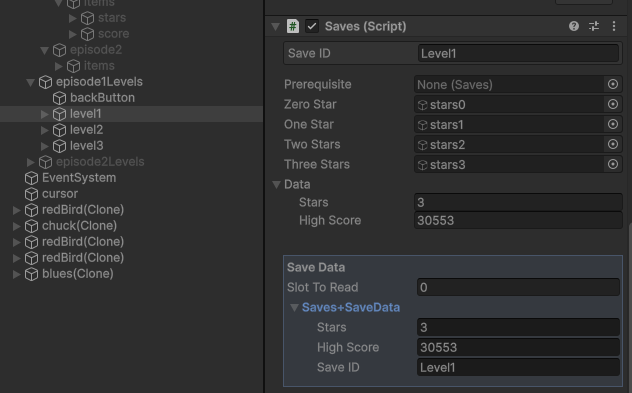
Saves.cs to put Bench Universal Save System into.An important thing to note for level unlocking to work properly is that each level must have the previous level’s Saves component assigned as its prerequisite. For example, Level 2 should reference Level 1’s save data, while Level 3 should reference Level 2’s save data.
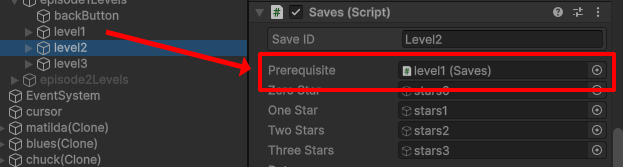
Saves component as the prerequisite to unlock the next level.After updating Saves.cs, we need to make a small change to MainMenu.cs to load the player’s saved progress. Simply add Bench.LoadGame(); inside the start method to load the previously saved data so that the level selection menu can retrieve the player’s stars, high scores and unlocked levels.
MainMenu.cs
using UnityEngine;
using UnityEngine.SceneManagement;
using Terresquall;

public class MainMenu : MonoBehaviour
{
    [SerializeField] private AudioSource audio;
    [SerializeField] private AudioClip[] sound;

    [SerializeField] private GameObject startMenu;
    [SerializeField] private GameObject episodeMenu;

    // Keeps track of the episode that the player is currently viewing, instead of only supporting episode 1
    private GameObject currentEpisode;


    private void Start()
    {

        //startMenu = playButton.gameObject.transform.parent.gameObject;
        //episodeMenu = backButton.gameObject.transform.parent.gameObject;

        // Loads previously saved game data when the main menu starts.
        Bench.LoadGame();
    }

    private void PlayButton()
    {
        menuSound(1);
        closeWindow(startMenu);
        openWindow(episodeMenu);
    }
    private void EpisodeButton(GameObject episode)
    {
        menuSound(1);
        currentEpisode = episode;
        closeWindow(episodeMenu);
        openWindow(episode);
    }

    private void BackButton()
    {
        menuSound(0);

        if (episodeMenu.activeSelf)
        {
            closeWindow(episodeMenu);
            openWindow(startMenu);
        }
        else if (currentEpisode.activeSelf)
        {
            closeWindow(currentEpisode);
            openWindow(episodeMenu);

            currentEpisode = null;
        }
    }
    private void levelButton(int Scene)
    {
        menuSound(1);
        SceneManager.LoadScene(Scene);
    }

    private void menuSound(int number)
    {
        audio.PlayOneShot(sound[number]);
    }
    private void quitGame()
    {
        Application.Quit();
    }
    private void closeWindow(GameObject Object)
    {
        Object.SetActive(false);
    }

    private void openWindow(GameObject Object)
    {
        Object.SetActive(true);
    }
}
The game can now use the Bench Save System to store and retrieve each level’s stars and high score. This allows the level selection menu to display previously earned stars and determine which levels should be unlocked based on the player’s saved progress.
b. Saving level progress automatically
As Angry Birds doesn’t have a manual save menu, progress should be saved automatically as the player completes each level. We will be modifying the InGameMenu to instantly save the level completion once the requirements are met. This saved data can then be used to restore progress and unlock the next level.
InGameMenu.cs
using System.Collections;
using System.Collections.Generic;
using Assets.Scripts;
using Terresquall;
using TMPro;
using UnityEngine;
using UnityEngine.SceneManagement;

public class InGameMenu : MonoBehaviour
{

    [SerializeField] private AudioSource audio;

    [SerializeField] private AudioClip[] sound;

    [SerializeField] private GameObject defaultState;
    [SerializeField] private GameObject openState;
    [SerializeField] private GameObject wonState;
    [SerializeField] private GameObject lostState;
    [SerializeField] private GameObject scoreState;
    [SerializeField] private GameObject highScore;
    [SerializeField] private GameObject[] stars;
    [SerializeField] private GameObject[] emptyStars;

    [SerializeField] private string saveID;

    [SerializeField] private AudioClip[] lostSounds;
    [SerializeField] private AudioClip[] winSounds;
    [SerializeField] private AudioClip scoreCountLoop;


    [SerializeField] private TextMeshProUGUI scoreText;
    [SerializeField] private TextMeshProUGUI highscoreText;


    private List<GameObject> Birds;


    Score score;


    private bool onWinScreen = false;


    private void Start()
    {
        // Replaced PlayerPrefs with Bench to retrieve and display the saved high score, or 0 if there is no saved data
        Saves.SaveData saveData = Bench.Find(saveID) as Saves.SaveData;

        if(PlayerPrefs.HasKey(SceneManager.GetActiveScene().buildIndex + "h"))
        if (saveData != null )
        {
            highscoreText.text = PlayerPrefs.GetInt(SceneManager.GetActiveScene().buildIndex + "h").ToString();
            highscoreText.text = saveData.highScore.ToString();
        }
        else
        {
            highscoreText.text = "0";
        }

        score = GameObject.Find("number").GetComponent<Score>();
    }

    private void Awake()
    {
        Birds = new List<GameObject>(GameObject.FindGameObjectsWithTag("Bird"));

        saveID = SceneManager.GetActiveScene().name;
    }

    private void FixedUpdate()
    {
        if (GameManager.CurrentGameState == GameState.Won && onWinScreen == false && GameManager.BricksBirdsPigsStoppedMoving() && new List<GameObject>(GameObject.FindGameObjectsWithTag("Bird")).Count == GameManager.birdsNumber)
        {
            int rand = Random.Range(0, 2);
            if (!audio.isPlaying)
            {
                AudioPlayer.audio.PlayOneShot(winSounds[rand]);
            }
            GameObject.Find("ambient").GetComponent<AudioSource>().Stop();
            StartCoroutine(winDelay(rand));
        }
        else if(GameManager.CurrentGameState == GameState.Lost && onWinScreen == false && GameManager.BricksBirdsPigsStoppedMoving() && new List<GameObject>(GameObject.FindGameObjectsWithTag("Bird")).Count == GameManager.birdsNumber)
        {
            GameObject.Find("ambient").GetComponent<AudioSource>().Stop();
            StartCoroutine(lostDelay());
        }
    }

    private void calculateStars()
    {
        score.maxScoreUpdate((Mathf.RoundToInt(Birds.Count * 0.75f)) * 10000);
        score.scoreUpdate((new List<GameObject>(GameObject.FindGameObjectsWithTag("Bird")).Count) * 10000);

        // Get previously saved level data and create new data
        Saves.SaveData starInfo = Bench.Find(saveID) as Saves.SaveData;
        Saves.SaveData newStarInfo = new Saves.SaveData();

        // Replaced PlayerPrefs with Bench to calculate the score for the stars, then displays the stars and update the saved star count if the player earns more stars than before
        if ((float)score.score / (float)score.maxScore * 100f >= 80f) // 3 starts
        {
            StartCoroutine(starDelay(3));
            newStarInfo.stars = 3;

            if (PlayerPrefs.GetInt(SceneManager.GetActiveScene().buildIndex.ToString()) < 3)
            if (starInfo != null && starInfo.stars < 3)
            {
                PlayerPrefs.SetInt(SceneManager.GetActiveScene().buildIndex.ToString(), 3);
                newStarInfo.highScore = starInfo.highScore;
                Bench.Write(saveID, newStarInfo);
            }
            else if (starInfo == null)
            {
                Bench.Write(saveID, newStarInfo);
            }
        }
        else if((float)score.score / (float)score.maxScore * 100f >= 50f) // 2 stars
        {
            StartCoroutine(starDelay(2));
            newStarInfo.stars = 2;

            if (PlayerPrefs.GetInt(SceneManager.GetActiveScene().buildIndex.ToString()) < 2)
            if (starInfo != null && starInfo.stars < 2)
            {
                PlayerPrefs.SetInt(SceneManager.GetActiveScene().buildIndex.ToString(), 2);
                newStarInfo.highScore = starInfo.highScore;
                Bench.Write(saveID, newStarInfo);
            }
            else if (starInfo == null)
            {
                Bench.Write(saveID, newStarInfo);
            }
        }
        else // 1 star
        {
            StartCoroutine(starDelay(1));
            newStarInfo.stars = 1;

            if (starInfo == null || starInfo.stars < 1)
            {
                PlayerPrefs.SetInt(SceneManager.GetActiveScene().buildIndex.ToString(), 1);
                if (starInfo != null)
                {
                    newStarInfo.highScore = starInfo.highScore;
                }
                Bench.Write(saveID, newStarInfo);
            }
        }

        // Updates and saves the highest score using Bench.SaveGameAsync() instead of PlayerPrefs then uses the saved stars for the score animation
        starInfo = Bench.Find(saveID) as Saves.SaveData;

        if (starInfo == null)
        {
            starInfo = new Saves.SaveData();
        }

        if (score.score > starInfo.highScore)
        {
            starInfo.highScore = score.score;
            Bench.Write(saveID, starInfo);
        }

        Bench.SaveGameAsync();
        starInfo = Bench.Find(saveID) as Saves.SaveData;
        PlayerPrefs.Save();
        StartCoroutine(CountUpToTarget(scoreText, score.score, PlayerPrefs.GetInt(SceneManager.GetActiveScene().buildIndex.ToString())));
        StartCoroutine(CountUpToTarget(scoreText, score.score, starInfo.stars));

    }

    private void highScoreShow()
    {
        if (PlayerPrefs.HasKey(SceneManager.GetActiveScene().buildIndex.ToString() + "h"))
        {
            if (PlayerPrefs.GetInt("1h") < score.score)
            {
                PlayerPrefs.SetInt(SceneManager.GetActiveScene().buildIndex.ToString() + "h", score.score);
                highScore.SetActive(true);
                menuSound(3);
            }
        }
        else
        {
            PlayerPrefs.SetInt(SceneManager.GetActiveScene().buildIndex.ToString() + "h", score.score);
            highScore.SetActive(true);
            menuSound(3);
        }
        PlayerPrefs.Save();

        // Checks if the player's current score matches or beats the saved high score, then displays the high score and plays menu sound
        Saves.SaveData saveData = Bench.Find(saveID) as Saves.SaveData;
        if (saveData != null && score.score >= saveData.highScore)
        {
            highScore.SetActive(true);
            menuSound(3);
        }
    }

    private void changeState()
    {
        menuSound(1);
        if (defaultState.active == true)
        {
            defaultState.SetActive(false);
            scoreState.SetActive(false);
            openState.SetActive(true);
        }
        else if(openState.active == true)
        {
            openState.SetActive(false);
            scoreState.SetActive(true);
            defaultState.SetActive(true);
        }
    }
    private void menuSound(int number)
    {
        audio.PlayOneShot(sound[number]);
    }

    private void reloadLevel()
    {
        menuSound(1);
        Application.LoadLevel(Application.loadedLevel);
    }
    private void loadMenu()
    {
        menuSound(1);
        SceneManager.LoadScene(0);
    }

    private void nextLevel()
    {
        menuSound(1);
        SceneManager.LoadScene(SceneManager.GetActiveScene().buildIndex + 1);
    }


    // enums


    private IEnumerator lostDelay()
    {
        yield return new WaitForSeconds(2f);

        if (GameManager.CurrentGameState == GameState.Lost && onWinScreen == false && GameManager.BricksBirdsPigsStoppedMoving() && new List<GameObject>(GameObject.FindGameObjectsWithTag("Bird")).Count == GameManager.birdsNumber)
        {
            AudioPlayer.audio.PlayOneShot(lostSounds[Random.Range(0, 2)]);


            onWinScreen = true;

            defaultState.SetActive(false);
            scoreState.SetActive(false);
            openState.SetActive(false);
            lostState.SetActive(true);
        }
    }
    private IEnumerator winDelay(int clipIndex)
    {
        yield return new WaitForSeconds(winSounds[clipIndex].length);
        if (GameManager.CurrentGameState == GameState.Won && onWinScreen == false && GameManager.BricksBirdsPigsStoppedMoving() && new List<GameObject>(GameObject.FindGameObjectsWithTag("Bird")).Count == GameManager.birdsNumber)
        {
            onWinScreen = true;

            defaultState.SetActive(false);
            openState.SetActive(false);
            scoreState.SetActive(false);
            wonState.SetActive(true);

            calculateStars();
        }
        else
        {
            StartCoroutine(lostDelay());
        }
    }


    private IEnumerator starDelay(int num)
    {
        int loopCount = 0;

        int starIndex = 0;

        yield return new WaitForSeconds(1f);
        while (num > loopCount)
        {
            stars[starIndex].SetActive(true);
            emptyStars[starIndex].SetActive(false);

            loopCount++;
            starIndex++;

            yield return new WaitForSeconds(1f);
        }
        highScoreShow();
    }
    IEnumerator CountUpToTarget(TextMeshProUGUI label, int targetVal, float duration, float delay = 0f, string prefix = "")
    {
        if (delay > 0)
        {
            yield return new WaitForSeconds(delay);
        }

        int current = 0;
        while (current < targetVal)
        {
            if (AudioPlayer.audio.clip != scoreCountLoop && !AudioPlayer.audio.isPlaying)
            {
                AudioPlayer.audio.PlayOneShot(scoreCountLoop);
            }

            current += (int)(targetVal / (duration / Time.deltaTime));
            current = Mathf.Clamp(current, 0, targetVal);
            label.text = prefix + current;
            yield return null;
        }
    }

}
The InGameMenu script now uses the Bench save system instead of PlayerPrefs. Each level uses the current Scene name as its saveID, allowing its stars and high score to be saved and loaded separately.
When a level is completed, Bench.Find() checks the existing data and Bench.Write() updates it only when the player achieves a higher score and earns more stars. Bench.SaveGameAsync() then saves the updated progress.
c. Displaying episode score totals using Bench data
To display the correct totals for each episode using Bench saved data instead of PlayerPrefs, we need to update the EpisodeScores script.
EpisodeScores.cs
using UnityEngine;
using TMPro;
using Terresquall;
using UnityEditor.Overlays;

public class EpisodeScores : MonoBehaviour
{
    [SerializeField] GameObject episodeLevels;

    [SerializeField] TextMeshProUGUI maxStarText;

    [SerializeField] TextMeshProUGUI totalStarText;

    [SerializeField] TextMeshProUGUI totalScoreText;

    [SerializeField] string[] levelSaveID;

    [HideInInspector]
    public int levelsCount;
    [HideInInspector]
    public int totalStarCount;
    [HideInInspector]
    public int totalMaxStarCount;
    [HideInInspector]
    public int totalScoreCount;

    private void Start()
    {
        levelsCount = episodeLevels.transform.childCount - 1levelSaveID.Length;
        totalMaxStarCount = levelsCount *3;

        int i = 0;

        while(levelsCount != i)
        {
            i++;
            if(PlayerPrefs.HasKey(i.ToString()))
            {
                totalStarCount = totalStarCount + PlayerPrefs.GetInt(i.ToString());
                totalScoreCount = totalScoreCount + PlayerPrefs.GetInt(i.ToString() + "h");
            }

        }

        // Retrieves each level's saved data and adds up the total stars earned and high scores
        for (int i = 0; i < levelSaveID.Length; i++)
        {
            Saves.SaveData starInfo = Bench.Find(levelSaveID[i]) as Saves.SaveData;

            if (starInfo != null)
            {
                totalStarCount += starInfo.stars;
                totalScoreCount += starInfo.highScore;
            }
        }

        maxStarText.text = totalMaxStarCount.ToString();
        totalStarText.text = totalStarCount.ToString();
        totalScoreText.text = totalScoreCount.ToString();
    }
}
A levelSaveID array is added to the list the Save IDs for all levels in the episode, and Bench.Find() is used to load each level’s saved data. The script then adds together the saved stars and high scores to show the episode totals.
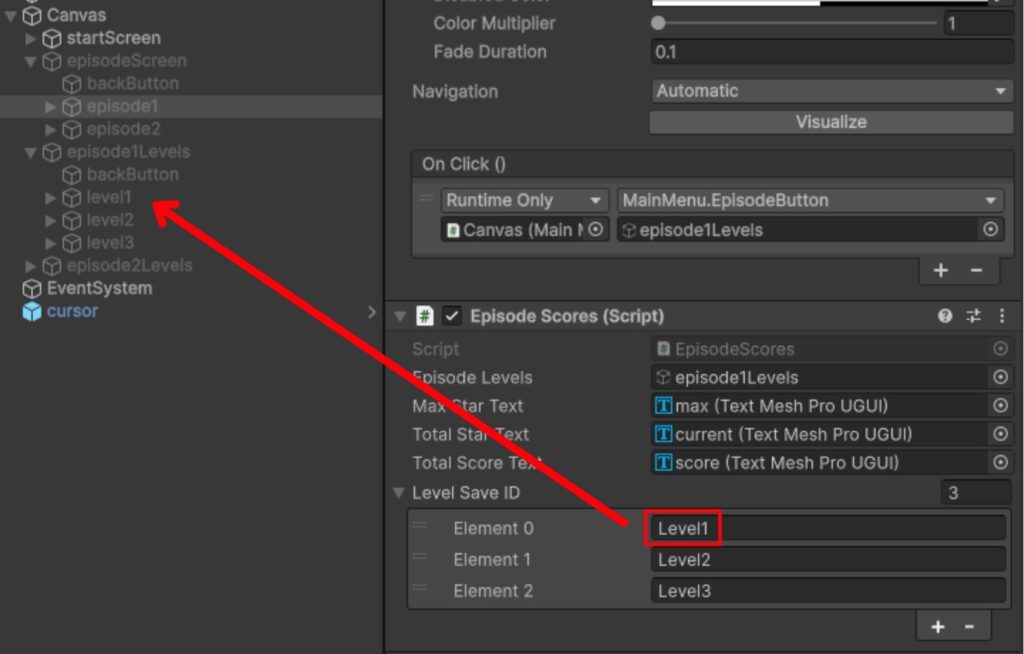
SaveID of each level under the episode in the levelSaveID array.It’s important to enter the exact SaveID used by the Saves component for each level in the corresponding episode so that the correct stars and high score can be loaded and added to the episode totals.
d. Adding a Save Indicator
Next, we will add a save indicator so that the player can see when the game is being saved.
In the Project window, find the default save indicator prefab: Assets/Bench Universal Save System/Prefabs/Save Indicators/Default Indicator.prefab.
Drag this prefab into the scene’s Canvas.
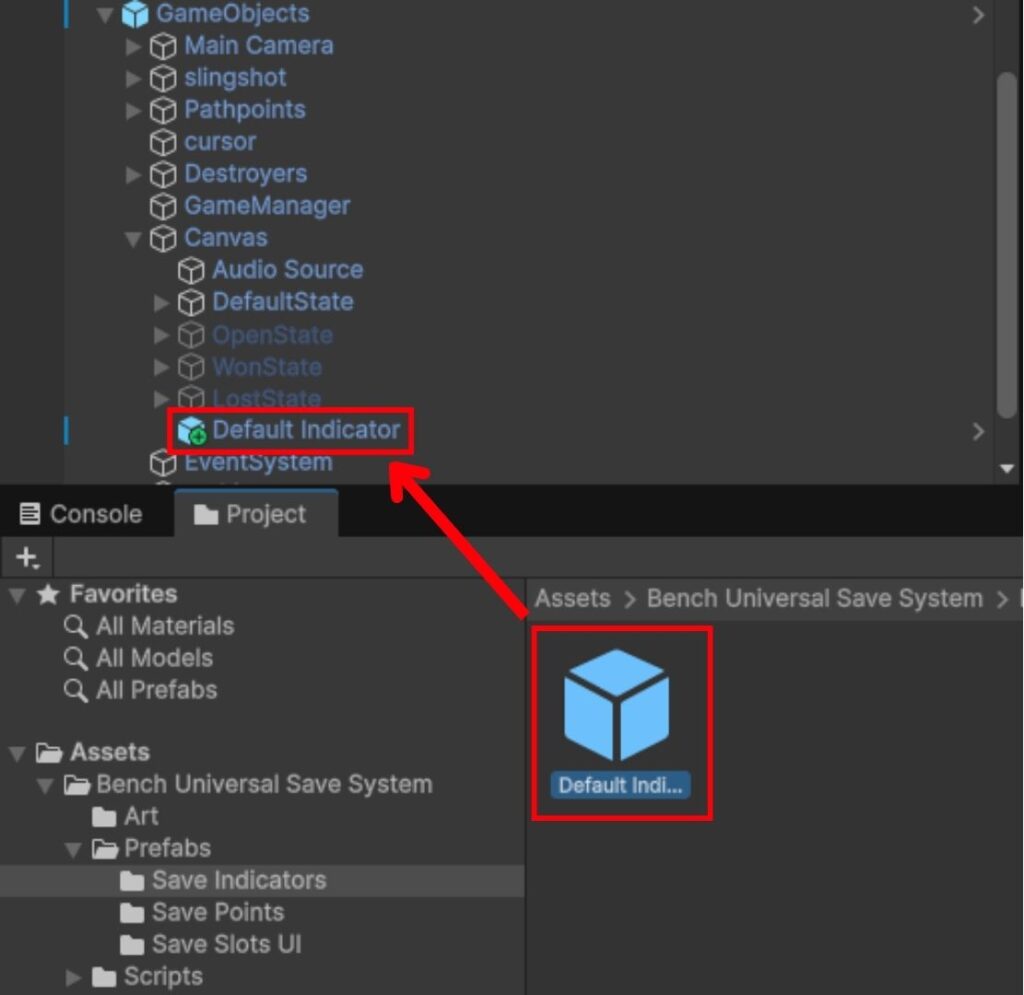
Once the Default Indicator is inside the Canvas, it will automatically appear when Bench saves the game. The indicator will look something like this:
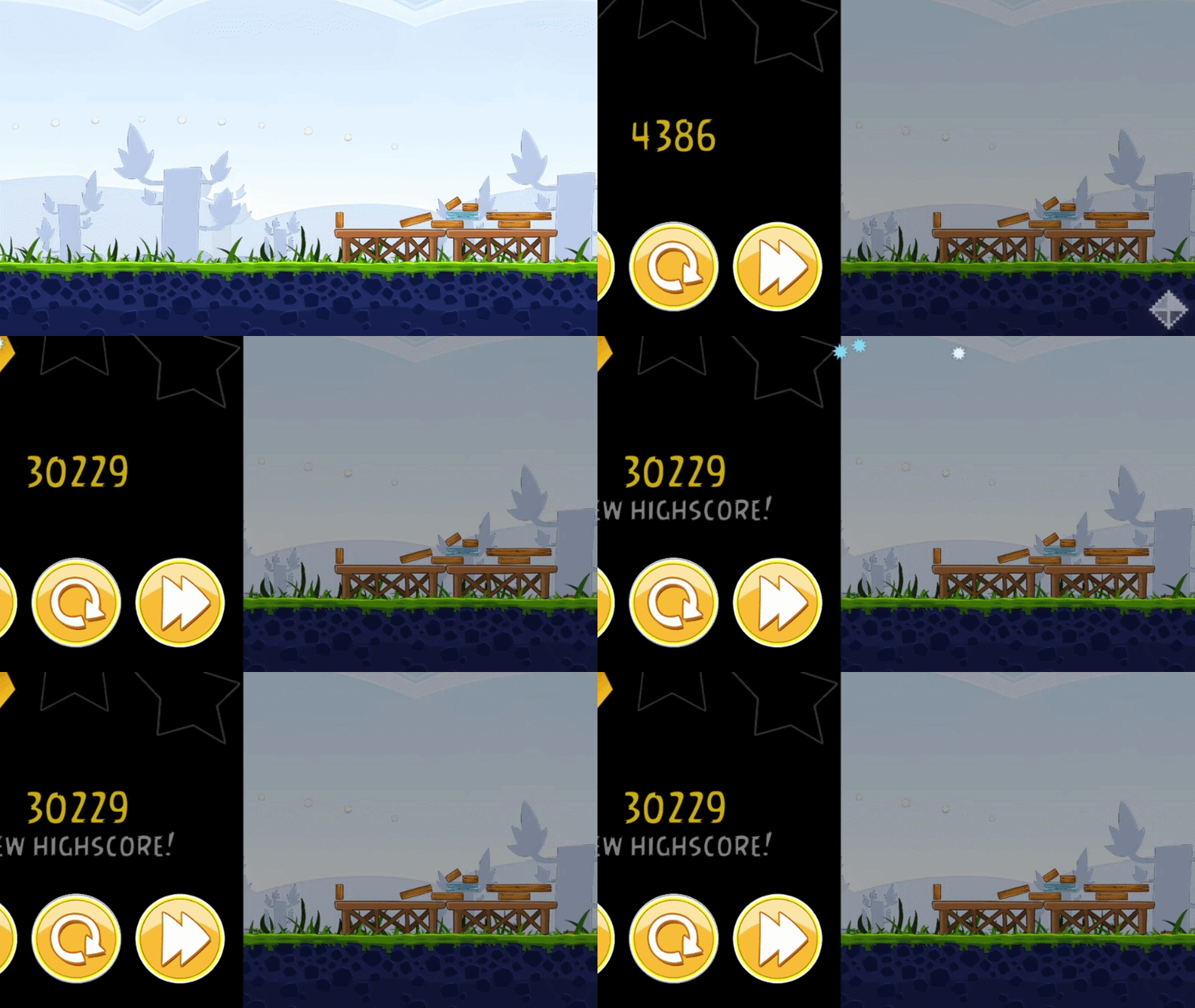
Note that the indicator will only appear if the Save Bench is using asynchronous saving, because synchronous saving will freeze the game until the save is complete, preventing the indicator from appearing.
4. Troubleshooting
In this section, we document common issues that people run into, as well as how to fix them.
a. Reviewing Save Data
After making a save, we can review the save file directly from the Bench save window. This is useful for checking whether the Save Point has actually created a save file and whether the correct PersistentObject data has been recorded.
After the game has been saved, open the Bench window from the Unity menu:
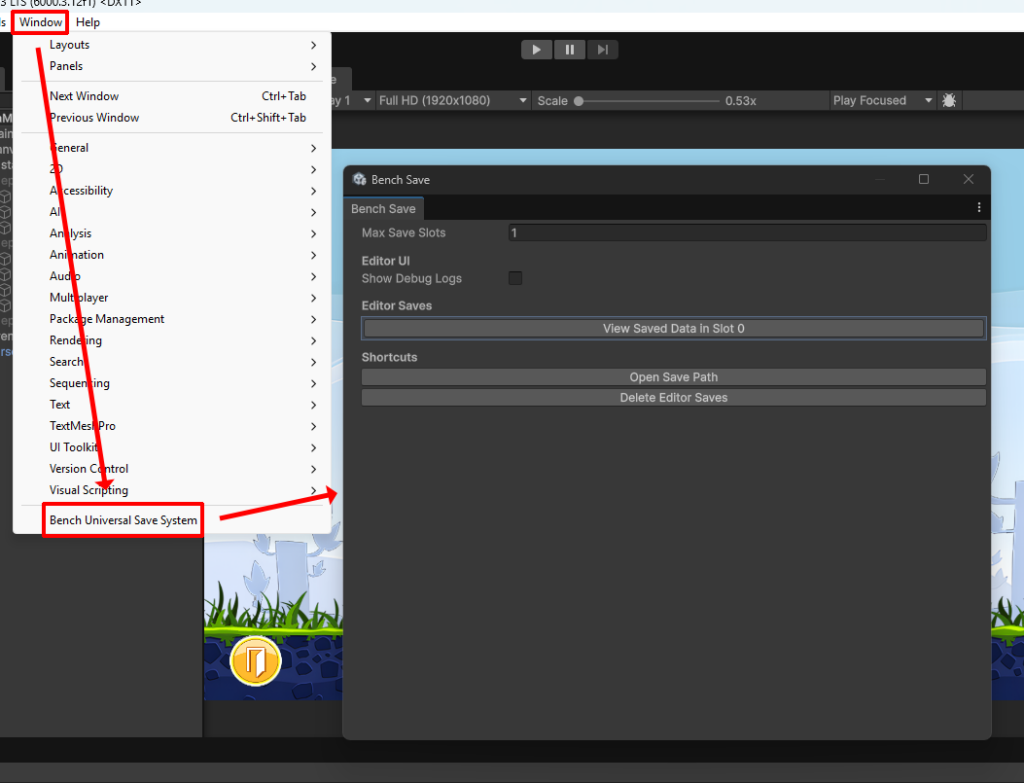
This will open the Bench Save window. In this window, look for the section that lists the save files created in the Editor, as shown above. If the save was created successfully, you should see a button that says View Saved Data in Slot 0, which, when clicked on, will show you the saved data.
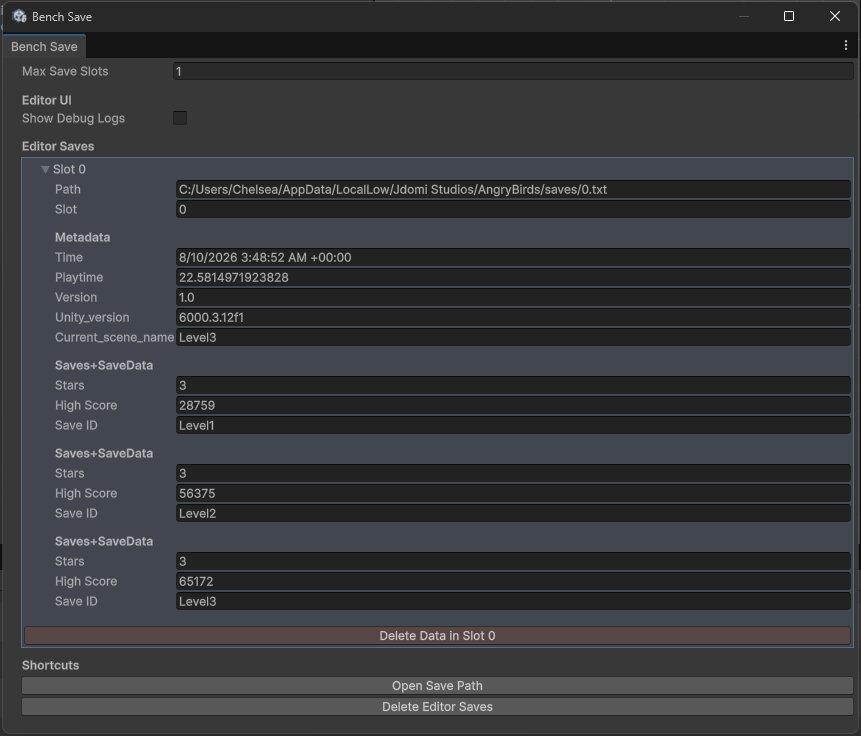
The save data viewer will show the data stored inside that save file. In this project, you should be able to find data from the objects that inherit from PersistentObject.
5. Conclusion
In this article, we integrated the Bench Universal Save System into an existing 2D game.
By using components that inherit from PersistentObject, the game can now save and restore important player and score data.
If you would like to use this system in your own project, visit our Bench Universal Save System page on the Unity Asset Store to download and install it.